



AI & Canva Print File Help
Please copy/paste this text to your Ai Chat Box.
AI tools can be helpful when preparing artwork for print, but they may not always produce print-ready files. The following information can help you create artwork that meets common professional printing requirements. If you're unsure about your file, our team is happy to help.
This example is based on a 5x7 but please put in your final size. (example 4x6 Bleed size: 4.25 x 6.25 or 8.5x11 Bleed size: 8.75 x 11.25)
The print-ready file would be set up as:
- Finished size: 5" × 7"
- Bleed: 0.125" on all four sides
- Document size with bleed: 5.25" × 7.25"
- Safe area: All important text and logos at least 0.125" inside the trim line (many printers actually recommend 0.25" for even better safety).
- Resolution: 300 DPI
- Color mode: CMYK
- Export: Press-ready PDF with bleed and crop marks
- Images: All images extended through the bleed to prevent white edges after trimming.
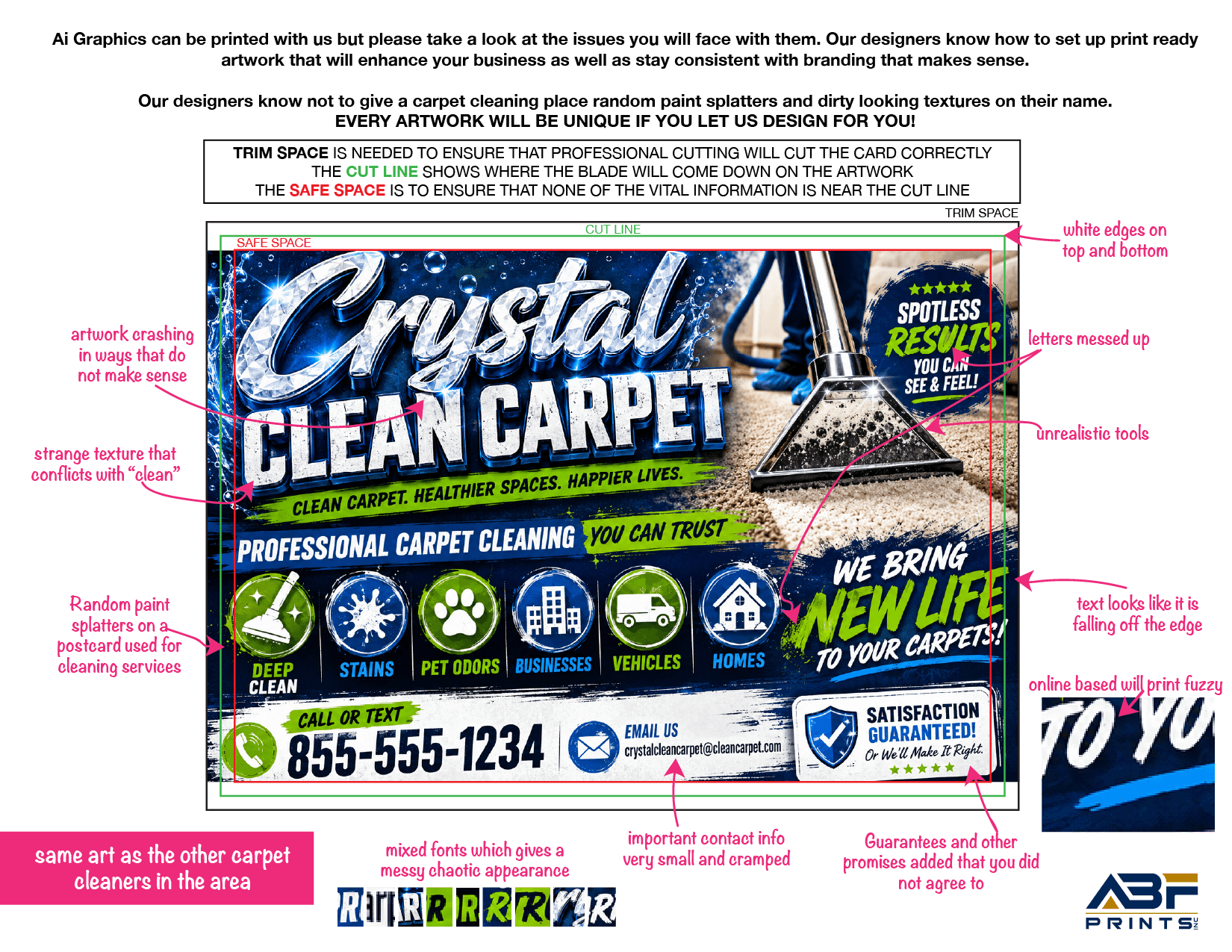
Get AI and Canva print file help from ABF Prints. Learn how to prepare files with the correct size, bleed, resolution, color mode and PDF settings.
Canva Printing Specifications
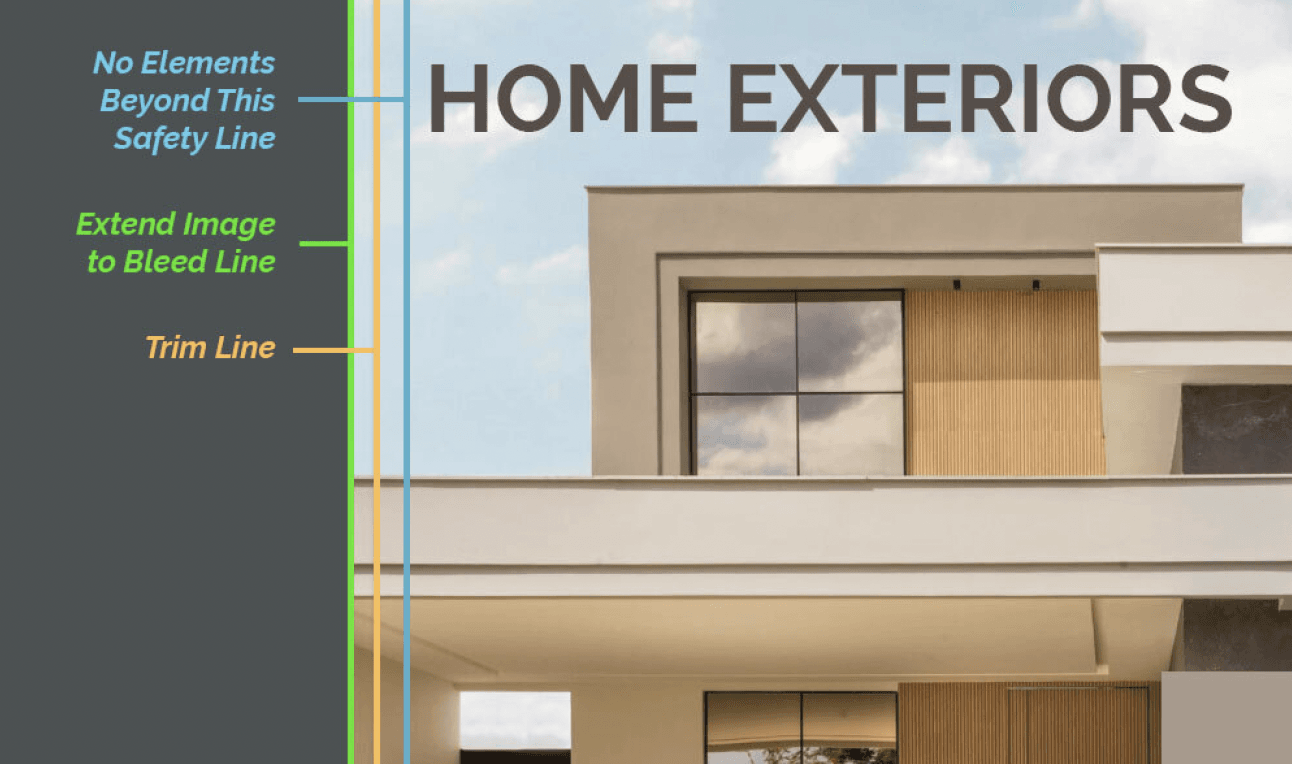
Get AI and Canva print file help from ABF Prints. Learn how to prepare files with the correct size, bleed, resolution, color mode and PDF settings.
Canva File Saving
We cannot guarantee files created with Canva will print correctly. Canva is a program that builds files for use online. We cannot guarantee colors will match.
In order to get the best possible files from Canva we recommend following these steps.
1. Add the correct margin (1/8" bleed) around your design, select File, then View Settings select Show Print Bleed
2. If you want your design or colors to extend to the edge of the page, stretch your background or images into the extended bleed margin
3. To get precise trimming, keep text and essential images out of the bleed margin (allowing 1/8" of distance between margin and any featured elements)
4. Remember, anything included in bleed margin (at the edges of the page) will be trimmed during the finishing process.
Save your file Print-Ready
After you've added finishing touches and your design is ready to send to the printer, follow these
prompts:
1. On the top right corner of your screen, click Share, then Download
2. Under File Type, select PDF Print (so designs are downloaded at high resolution)
3. Check the box labeled Crop Marks and Bleed
4. If your file has multiple pages, select those you want to download (using Select Pages)
5. Under Color Profile, select CMYK (this requires a Canva Pro subscription; 30 day free trials
available!)
6. Press Download, and Canva will generate a print-ready PDF


